

| Modem's primary job | Connect your home to the ISP's network |
| Router's primary job | Manage local network traffic and provide Wi-Fi |
| Gateway | One device performing both modem and router functions |
| Common cable modem standard | DOCSIS (versions 3.0, 3.1, 4.0) |
| Rental equipment | Typically provided by ISPs; monthly fee applies |
| Bridge mode use case | Disable gateway routing to use a separate router |
The Three Devices at the Heart of Your Home Network
If you've ever stared at the blinking boxes plugged into your wall and wondered which does what, you're not alone. The terms modem, router, and gateway are often used interchangeably - but they describe different functions. Understanding each one helps you troubleshoot outages, communicate clearly with your internet provider, and make smarter decisions about your equipment.
| Modem's primary job | Connect your home to the ISP's network |
| Router's primary job | Manage local network traffic and provide Wi-Fi |
| Gateway | One device performing both modem and router functions |
| Common cable modem standard | DOCSIS (versions 3.0, 3.1, 4.0) |
| Rental equipment | Typically provided by ISPs; monthly fee applies |
| Bridge mode use case | Disable gateway routing to use a separate router |
For a broader look at how connection types affect what equipment you need, see our guide to home internet connection types.
What a Modem Does
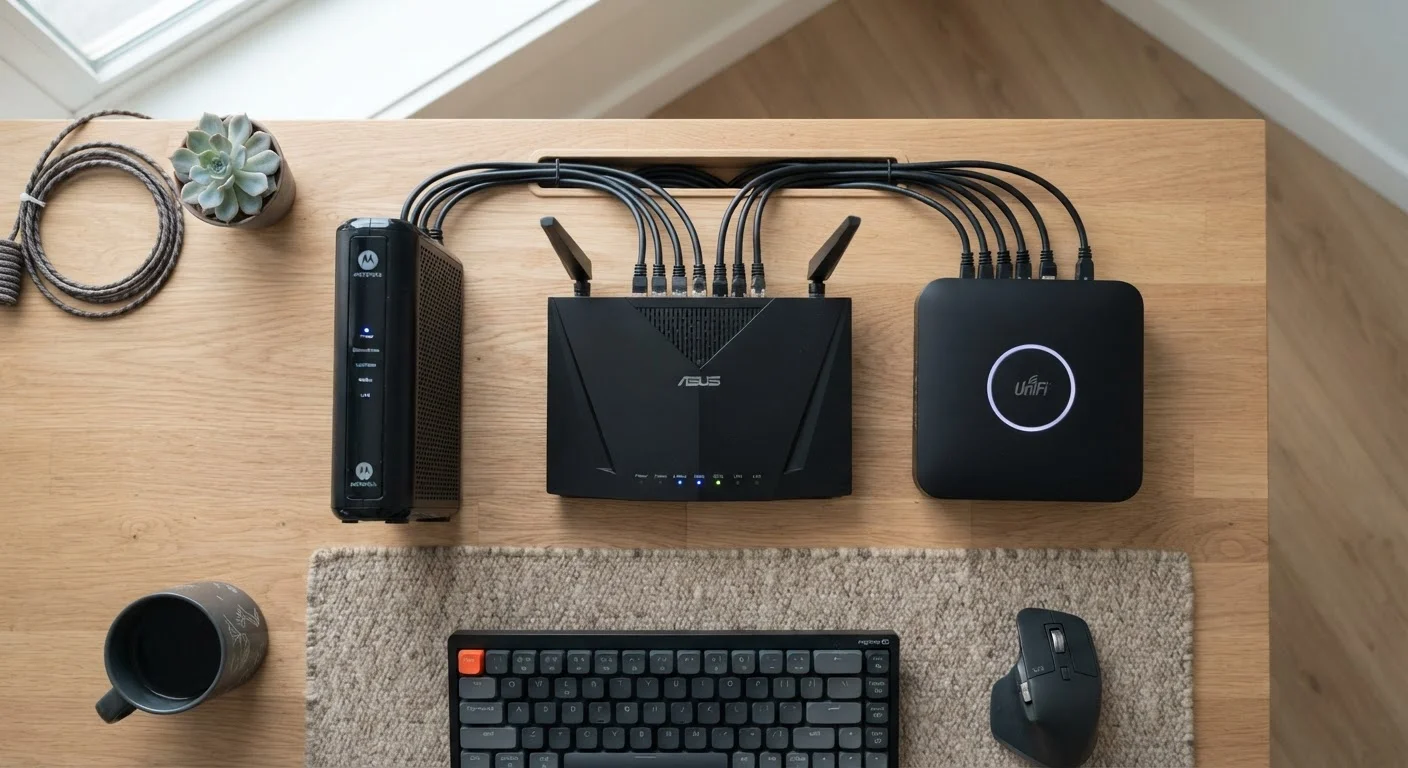
A modem (short for modulator-demodulator) is the device that connects your home to your internet service provider's (ISP's) network. It translates the signal coming in from your ISP - whether through a coaxial cable, phone line, or fiber line - into a digital signal your devices can use.
Without a modem, there is no internet signal entering your home at all. The modem handles only one job: bridging your household network to the outside world. It typically has one input port connecting to the ISP's line and one output port (usually an Ethernet jack) that hands off the connection to the next device.
Cable-based modems use a standard called DOCSIS (Data Over Cable Service Interface Specification). The version of DOCSIS your modem supports directly affects the maximum speeds it can handle, so older modems can bottleneck a faster plan even when your ISP upgrades service.
What a Router Does
A router sits between your modem and your devices. Its job is to manage traffic across your local network - assigning IP addresses to each device, directing data packets to the right destination, and creating the Wi-Fi network your phone, laptop, and smart TV connect to.
The router is what makes it possible for multiple devices to share one internet connection simultaneously. It also provides a basic firewall that helps shield your devices from unsolicited outside traffic.
Router performance affects Wi-Fi range, connection stability, and how well the network handles many devices at once. For a deeper look at how routers manage that workload, see our plain-language breakdown of what routers do. And if you're wondering why some households struggle with buffering or lag, our article on how devices and activities consume bandwidth explains how usage adds up.
What a Gateway Is - and How It Differs
A gateway combines the functions of a modem and a router into a single device. ISPs frequently provide gateways to subscribers as rental equipment because one box is simpler to support than two. From the outside, a gateway looks like a single unit; internally, it performs both signal translation and local traffic management.
Modem
A device that connects your home to your ISP's network by translating the incoming signal into a format your home network can use. It acts as the entry point for internet service.
Router
A device that manages traffic within your local network, assigns IP addresses to connected devices, and creates your Wi-Fi network. It enables multiple devices to share one internet connection.
Gateway
A single device that combines modem and router functions. ISPs commonly provide gateways as rental equipment for simplicity.
DOCSIS
Data Over Cable Service Interface Specification - the technical standard that governs how cable modems communicate with ISP networks. Higher DOCSIS versions support faster maximum speeds.
Bridge Mode
A gateway setting that disables its built-in routing function, allowing a separate, dedicated router to handle local network management without conflicting address translation.
Double NAT
A condition where two devices on a network both perform Network Address Translation, which can cause connectivity issues for gaming, video calls, and certain remote access applications.
Gateways are convenient, but they come with trade-offs. Because the modem and router functions share hardware, you have less flexibility to upgrade one component independently. If the gateway's router performance doesn't meet your needs - for example, weak Wi-Fi coverage in a larger home - you may need to add a separate access point or switch to standalone equipment.
Some ISPs allow you to put a gateway into bridge mode, which disables its routing function so you can connect a dedicated router and avoid "double NAT" (Network Address Translation) conflicts that can slow performance or cause issues with online gaming and video calls.
Renting vs. Owning Your Equipment
Most ISPs offer equipment rental for a monthly fee. Renting is convenient - the provider handles replacements and compatibility - but the costs add up over time. Purchasing compatible standalone equipment can reduce ongoing expenses, though you become responsible for ensuring the hardware meets your ISP's specifications.
Before purchasing any modem, verify it appears on your ISP's approved compatibility list. Using an unapproved modem can result in activation failures or unsupported speeds. Your ISP's customer support can confirm which specifications (such as DOCSIS version or bonded channels) you need to match your subscribed plan.
Households in rural or underserved areas may have limited equipment choices depending on available connection technology. Our guide to internet options in rural areas covers how different technologies affect equipment requirements. For guidance on connecting smart home devices once your network is set up, see our introduction to smart home devices.